Step 1: Enter the customization bay
Ride to the workshop stall located directly next to the dealership building. Above the entrance bay is a prominent sign reading CUSTOMIZATION. Rolling your motorcycle into the designated trigger area opens an on-screen dialog prompt.
- Approach the
CUSTOMIZATIONbay next to the dealership. - When the pop-up prompt appears, read the header:
Enter Customization Mode? - Click the green
Enterbutton to confirm.
How you know it worked: The riding HUD disappears, the camera cuts to a focused garage view centered on your bike, and the customization interface displays your active bike name alongside the component menu.
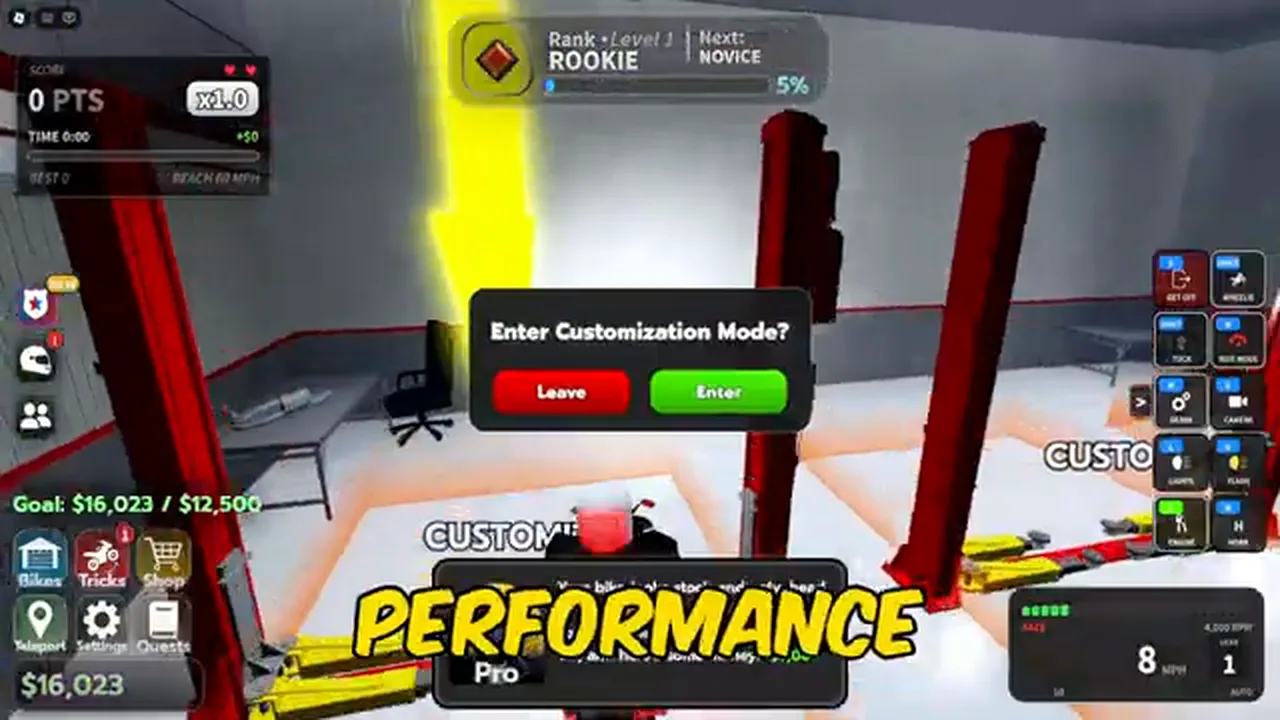
The prompt at the bay beside the dealership. Confirming it switches the panel to the bike you are currently on.
Step 2: Choose the right category
The customization interface organizes modifications into eight distinct categories across three functional groups.
| Category Group | Menu Categories | What they cover | Confirmed in-game effect |
|---|---|---|---|
| Mechanical Tuning | PERFORMANCEEXHAUSTSUSPENSION |
Engine power, exhaust pipes, and suspension geometry | Unconfirmed: Specific stat changes, horsepower increases, and handling curves were not captured in recorded footage. |
| Appearance & Lighting | PAINTUNDERGLOWACCESSORIES |
Body colors, material finishes, chassis neon, and cosmetic add-ons | Changes visual textures, hex colors, and lighting aesthetics on the 3D model. |
| Identity & Audio | KEYFOBHORN |
Keyring accessories and audible horn sounds | Visual keyfob cosmetics and acoustic horn playback. |
Select the category for the modification you intend to inspect.
How you know it worked: The category expands into individual component slots, color palettes, or audio preview options.
Step 3: Select parts and paint finishes
The PAINT category applies custom colors and surface finishes across your motorcycle. The in-game interface prints this explicit rule at the top of the paint selection screen:
Pick a colour and a finish. Finishes are bought once per bike, then free on every part.
This purchase structure means that once you buy a specific finish material for an owned bike, that finish can be applied across all paintable areas of that motorcycle without paying for the finish a second time.
Paint zones and finish types
The paint interface splits motorcycle bodywork into five configurable zones and eight named finish treatments:
- Body zones:
PRIMARY,SECONDARY,ACCENT,WHEELS, andCALIPERS. Color shades are selected and displayed using hexadecimal (hex) color values. - Finish treatments:
GLOSS,METALLIC,MATTE,SATIN,PEARL,CARBON,CHROME, andGLOW.
Specific in-game cash prices for each individual finish were cut off by interface panels in recorded footage and remain unconfirmed.
How you know it worked: The 3D bike model in the center of the garage updates immediately with the chosen hex color and finish texture preview.
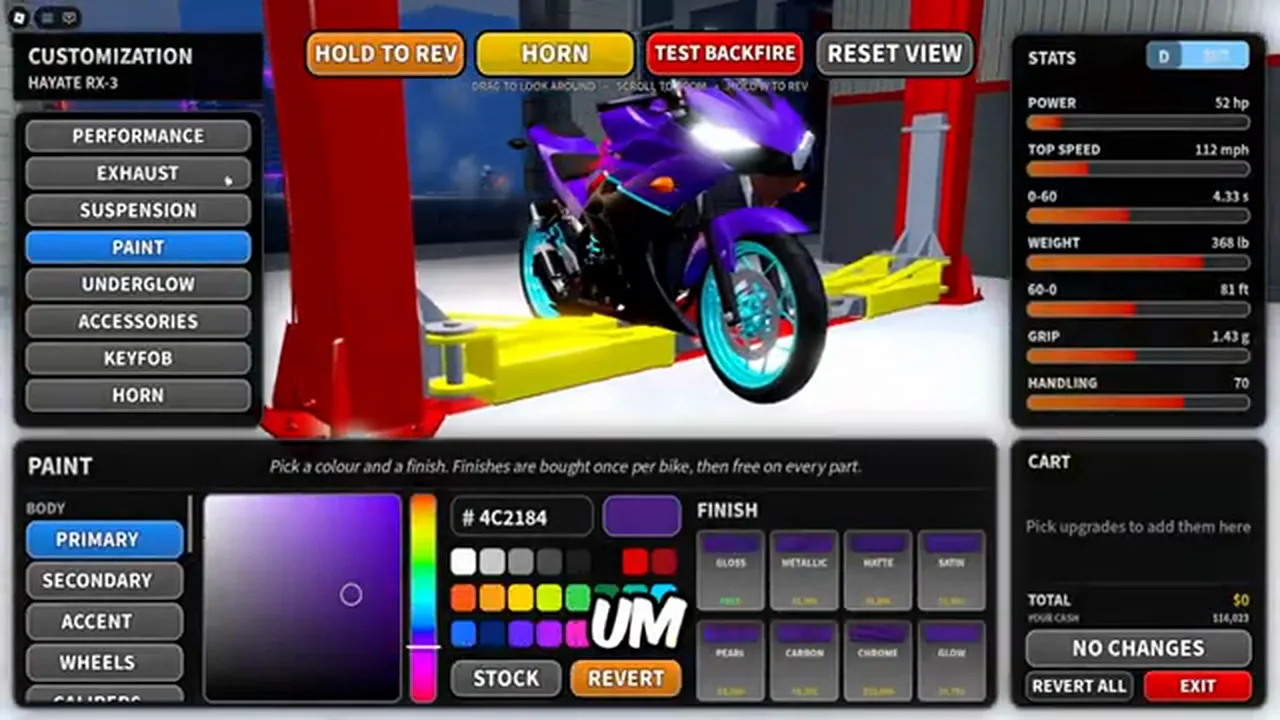
The paint screen: the BODY zones on one side, the colour field with its hex value, and the eight finish names below.
Step 4: Review your cart before paying
Before committing any in-game funds, check the checkout box located at the bottom of the customization menu.
The checkout panel displays three key data points:
TOTAL: Displays the queued cost of all pending alterations (TOTAL $0when nothing is selected).YOUR CASH: Displays your current wallet balance (read as$16,023in one recorded customization session).- Control buttons:
NO CHANGES: Shown when no pending items are queued in your cart.REVERT ALL: Instantly resets all queued parts, paint colors, and finishes back to the bike's currently saved setup.EXIT: Closes the workshop menu and returns your motorcycle to the free-roam world.
Always verify that TOTAL does not exceed your spending plan. If you made an accidental selection, press REVERT ALL before confirming.
How you know it worked: Pressing EXIT closes the menu and returns you to free-roam riding outside the dealership.
Hayate RX-3 customization stats baseline
When the starter motorcycle, the Hayate RX-3, is placed in the customization bay, the interface displays an expanded STATS panel with seven performance metrics:
| Metric | Hayate RX-3 Customization Reading | Unit / Measurement |
|---|---|---|
POWER |
52 |
hp |
TOP SPEED |
112 |
mph |
0-60 |
4.33 |
s |
WEIGHT |
368 |
lb |
60-0 |
81 |
ft |
GRIP |
1.43 |
g |
HANDLING |
70 |
Progress index |
Single-Bike Limitation: These seven numerical figures are strictly the observed readouts for the Hayate RX-3. They cannot be applied, estimated, or assumed for any other motorcycle in the game. To inspect the dealership numbers for every other model before spending cash on custom paint, review every bike and its price.
When you are not sure what you are buying
If you are inside the workshop and uncertain about what a purchase entails, observe these verified limitations:
- Purchase button text is unrecorded: When modifications are placed into the cart, the exact button text that replaces
NO CHANGESto finalize payment was not captured on camera. - Transaction confirmation toast is unrecorded: The specific on-screen toast or banner confirming that money was deducted and parts were saved was not captured in recorded gameplay.
- Performance part yields are unverified: Because stat improvements for
PERFORMANCE,EXHAUST, andSUSPENSIONare not detailed on screen, do not spend early cash on mechanical parts expecting documented horsepower gains. - Compare against passes: If you are planning visual upgrades such as neon lighting or custom plates, check the Robux cosmetic listings to see whether those visual items are sold as Robux passes before spending in-game currency.
- Safe exit: If you are unsure of any queued total, click
REVERT ALLand then pressEXIT. Your cash balance remains completely untouched.